.png)

Chrome Extension
Welcome to LogicLens
Congrats, LogicLens (aka your new personal Socrates-in-your-Browser) is now at your service. Here are some simple steps for how to use it.
Step 1
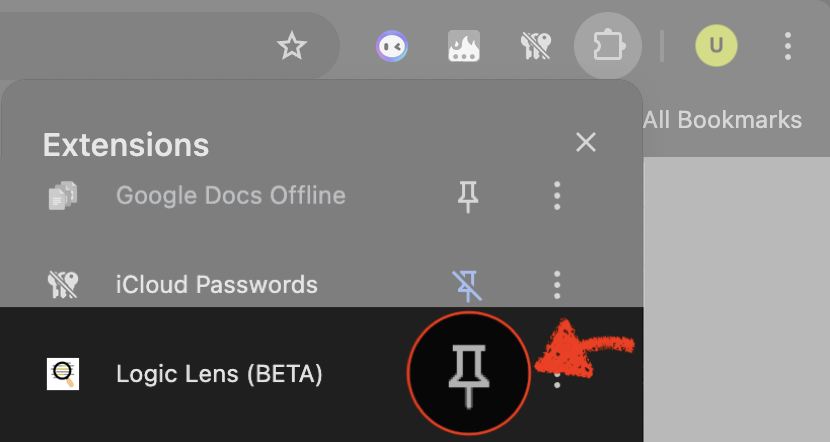
Pin LogicLens
In Chrome's toolbar at the top, click the puzzle icon  . In the list of extensions, find LogicLens and click the pin
  icon beside it so the extension is easily accessible.
Step 2
How to Open & Close the Extension/Sidebar
At any time, there are 3 simple ways to open and close the extension's sidebar, which is where LogicLens' analysis shows up, and where you can access all settings:
- Command + Shift + L (Mac); Ctrl + Shift + L (Windows). Test it out!
- Click the pinned LogicLens icon in the toolbar at the top right of the Chrome browser
 .
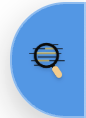
. - Hover over the middle of your browser window's right edge. A draggable blue icon will appear; drag left to open the extension.
Step 3
Analyze a Page
There are 2 ways to start analysis on a page:
- Click the floating button with the magnifying glass on your screen (by default it should be in the top left of whatever webpage you're on). This will open the sidebar/extension in addition to triggering analysis.
- If you didn't click the floating button to trigger analysis yet, and you open the sidebar, you will see a blue button in the sidebar that says "Analyze this Page"; click it to start analysis.
Analysis currently takes anywhere from a few seconds up to 1 minute max. We are working on shortening that drastically.
Step 4
Browse Logically
When analysis finishes, hover over highlighted text to see the issues detected; click highlights for more detailed analysis in the sidebar.
Quick tips
- Accept your secret invite to the Logical Lab Discord to access early-user perks and provide direction on LogicLens development.
- Use Neutrality Signals as a hint, not a verdict.
- If something looks off, use Report a Problem () in the sidebar.